Changing a Control4 system's owner
OvrC Locations are tied to the customer's Control4 account, so you must unregister the primary controller in OvrC. Not Composer. Then transfer each first-party device to a new OvrC Customer Location.
Note: OvrC Connect licenses are non-transferable. The new customer must purchase their own.
Taking over a system from another dealer?
If you're taking over a Control4 system from another dealer, perform an OvrC System Takeover to move the system to your OvrC account. Then follow the below instructions to move the system to a new OvrC Customer Location.
Unregister the primary controller
-
Go to the OvrC Customer Location where the Control4 system is currently claimed.
-
Go to CATEGORIES > Control & Automation.
-
In the Control4 Project Settings, click MANAGE.

-
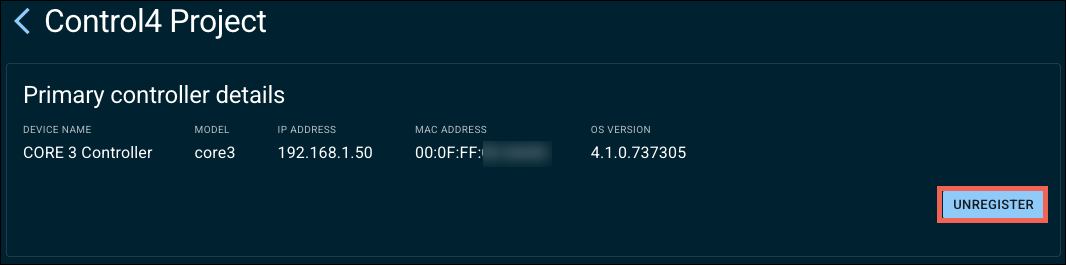
Click UNREGISTER.
-
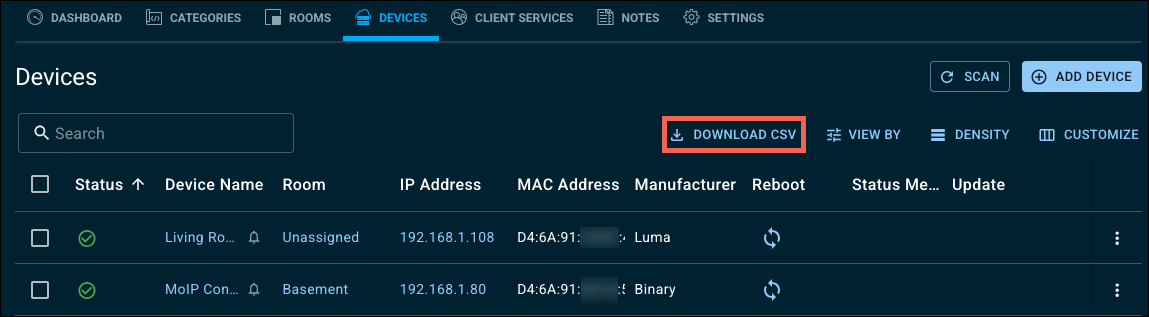
Go to the DEVICES tab and click DOWNLOAD CSV for a copy of the device list to help you rename the devices in the new OvrC Customer Location.
-
Go back to the Customer list and create a new OvrC Customer and Location.
Transfer the controller and additional OvrC Pro devices
-
Return to the original Customer Location and click on the Devices tab.
-
Select the Control4 controller.
-
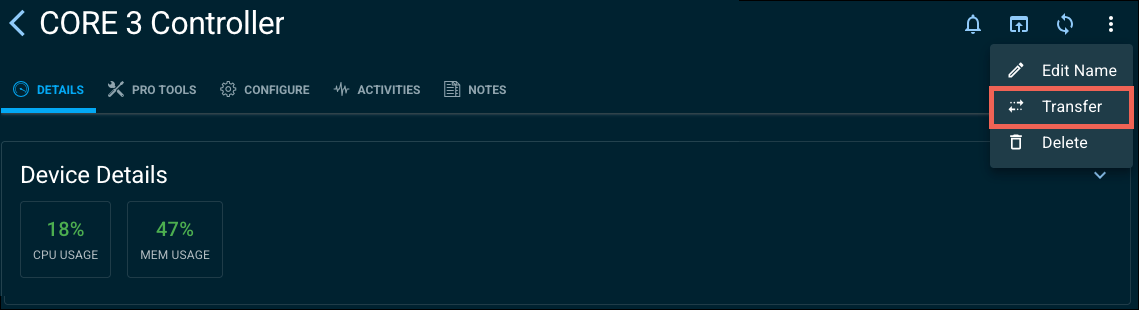
Click the More Options in the upper right corner and select Transfer.
-
Select Customer, then select the newly created Customer and Location from the drop-down menus.

-
If an error occurs, go back to the original OvrC Customer Location and make sure the primary controller is unregistered.
-
Repeat these steps for each OvrC Pro Device in the location. Below is a list of all the Pro devices:
-
Araknis x10 Routers (110, 110W, 310)
-
Araknis x20 Routers (220 and 520)
-
OS 3.3.3+ for EA, CA, and CORE Controllers
-
OvrC-300 and 100 Hubs
-
ihiji APP-750
-
ihiji APP-2000
-
ihiji APP-2100
-
ihiji APP-2100-UK
-
Pakedge WR-1
-
Pakedge WR-1-1
-
Pakedge NK-1
-
Pakedge RK-1
-
Pakedge RT-3100
-
ihiji APP-2000-UK
-
Transfer the first-party devices
-
In the original Customer Location, go to the Device list.
-
Click the first-party device name.
-
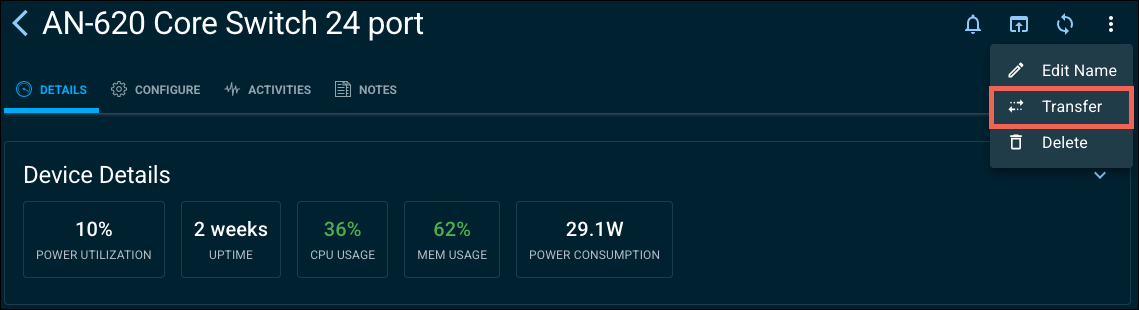
Click the More Options in the upper right corner and select Transfer.
-
Select Customer, then select the newly created Customer and Location from the drop-down menus.
-
Repeat steps 1-4 for each first-party device. Devices discovered by the OvrC Pro agent cannot be transferred this way.
-
Delete the original OvrC Customer Location. This removes the discovered third-party devices from OvrC so you can scan them into the new Location.
Configure the new OvrC Customer Location
-
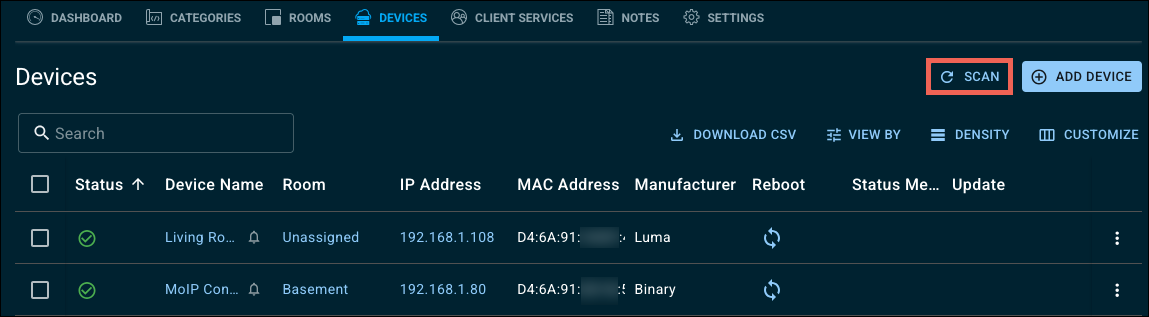
In the new Customer Location, go to the DEVICES tab and click SCAN to claim all the third-party devices on the network.
-
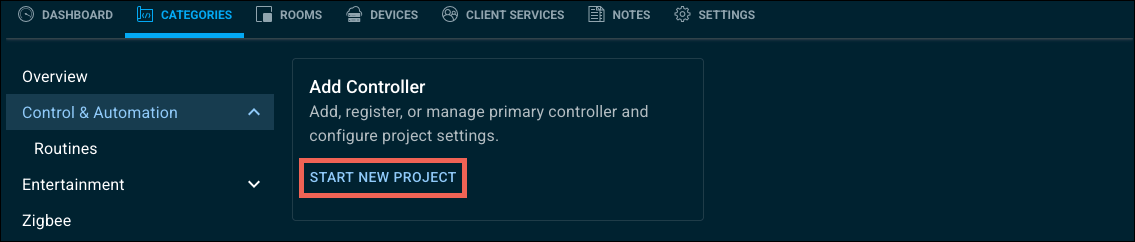
Go to CATEGORIES > Control & Automation and click START NEW PROJECT to register the Control4 controller.
-
Use the temporary Control4 mobile app credentials to verify the system works as expected.
-
Complete the Customer Hand-off process.
Note: OvrC Connect licenses are non-transferable. The new customer must purchase their own.